SG Finance Tracker
Everything you need to know
From first setup to FIRE dashboard — step-by-step guides for every feature.
- Unlimited expense tracking
- Smart categories & payment methods
- Daily / weekly / monthly summaries
- 2 budgets & daily streaks
- 3 AI queries & 3 receipt scans/mo
- Basic FIRE dashboard
- 30+ AI queries & receipt scans
- Full FIRE dashboard & milestones
- Net worth tracking
- Monthly reports & weekly AI digest
- More templates, recurring & budgets
- Use /request in the bot to let us know
Add the Bot
Open Telegram and search for @SGTelegramFinanceTrackerBot, or tap the "Add to Telegram" button on the home page.
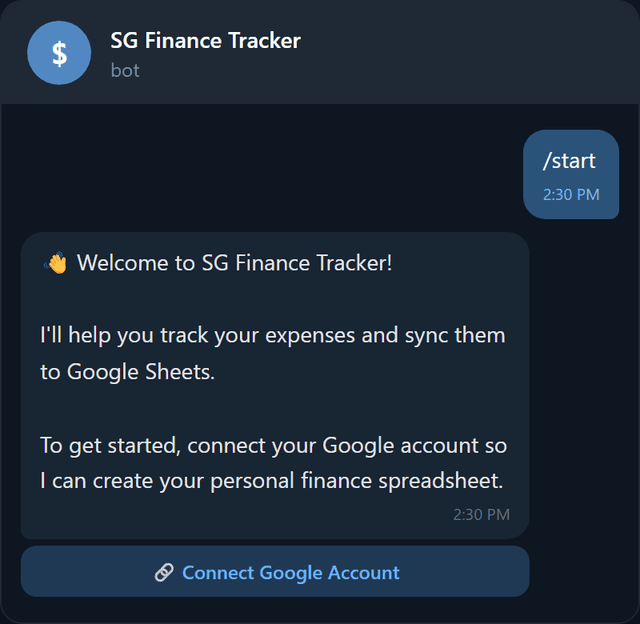
- 1Open the bot chat in Telegram.
- 2Tap Start to begin setup.
- 3The bot will greet you and ask you to connect your Google account.
Connect Google Sheets
Your data stays in a Google Sheet you own.
The bot stores your expense data in a Google Sheet that you own. You need to authorize access once — the bot will create a single finance tracking spreadsheet in your Google Drive.
- 1Tap the Connect Google Account button.
- 2Sign in with your Google account in the browser.
- 3Grant permission — the bot only requests access to create and manage one spreadsheet. It never touches your other files.
- 4After authorization, the bot automatically creates your finance sheet and confirms setup is complete.
- Create a single spreadsheet in your Google Drive
- Read from and write to that spreadsheet only
- No access to your other Google files, emails, or data
You can revoke access anytime from your Google account permissions.
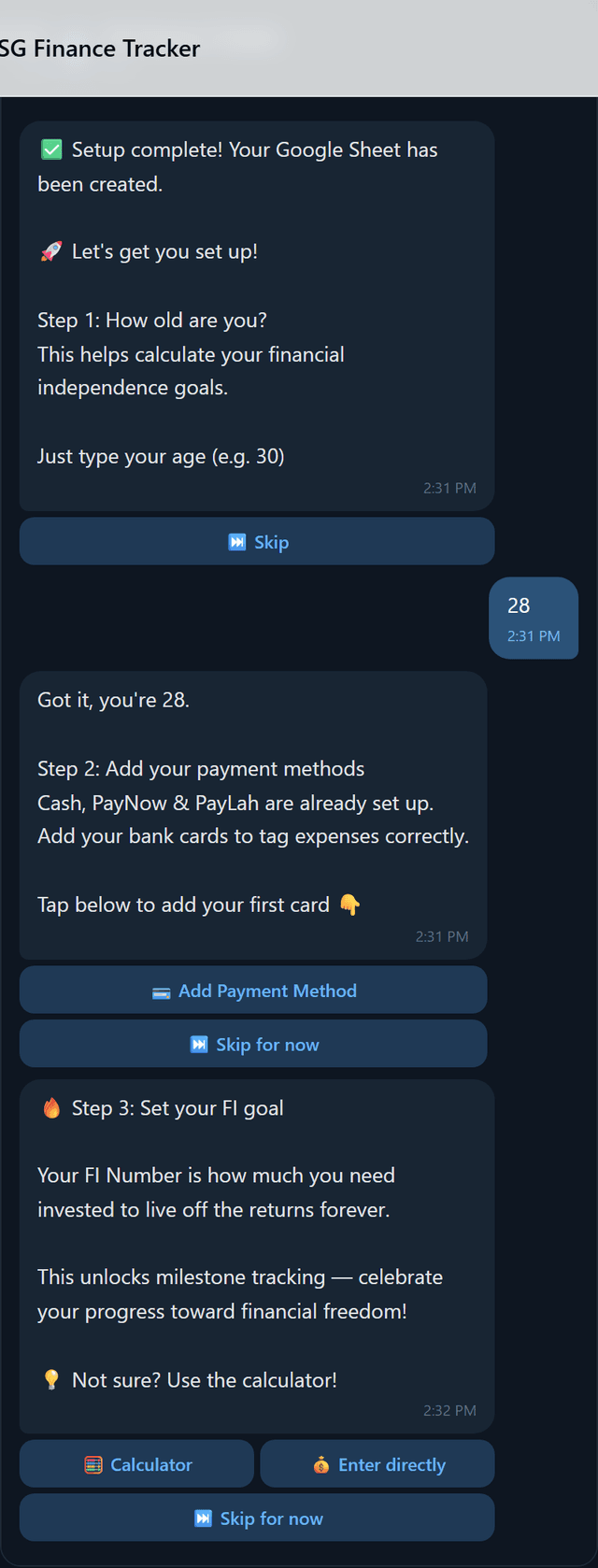
Set Your Age
Right after setup, the bot asks for your age. This powers the FIRE Dashboard — it calculates how many years until you can retire based on your spending and net worth.
Type your age or tap Skip — you can always set it later in /fire → Edit Settings.
Your age is only used for formula calculations in your Google Sheet (e.g. Coast FI, years to retirement). It is not shared or stored anywhere else.
Set Up Payment Methods
Next, the bot prompts you to add your payment methods. This is important because expenses default to "Cash" if you don't set up your cards.
- 1Tap Add Payment Method (or skip and do it later with /cards).
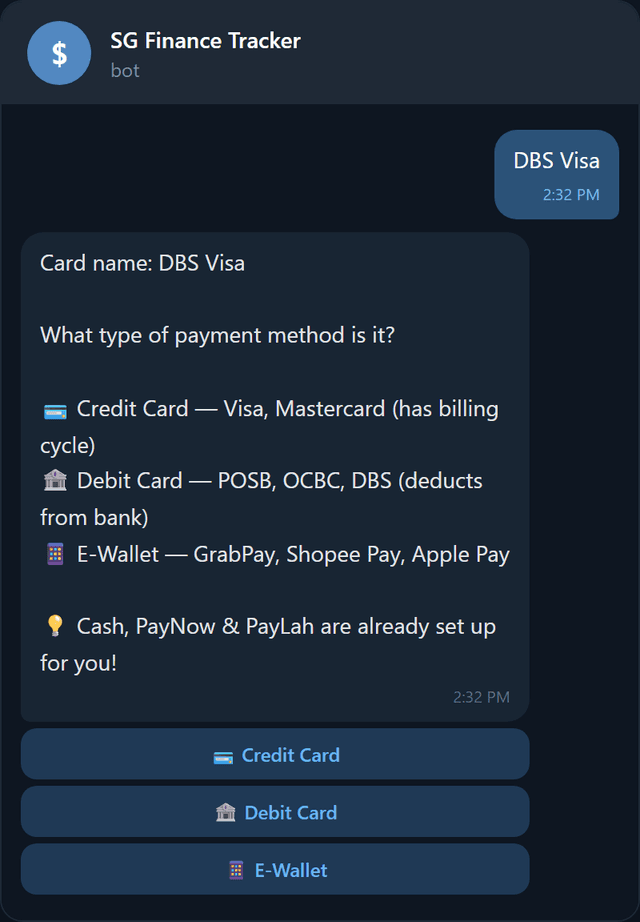
- 2Enter the card name (e.g., "DBS Visa", "GrabPay", "OCBC Debit").
- 3Optionally enter the billing date (1–31) for automatic bill reminders.
- 4Repeat for each card or e-wallet you use.
Set Your FI Goal
Your FI Number is how much you need invested to live off the returns forever. Setting it unlocks milestone tracking — celebrate your progress toward financial freedom.
Choose the Calculator for a guided walkthrough, enter your number directly, or Skip — you can always set it later in /fire → Edit Settings.
Your First Expense
Just type the amount and a description. That's it.
Adding an expense is as simple as typing a message. No commands needed — just type the amount and a description.
You type:
15.50 lunch chicken rice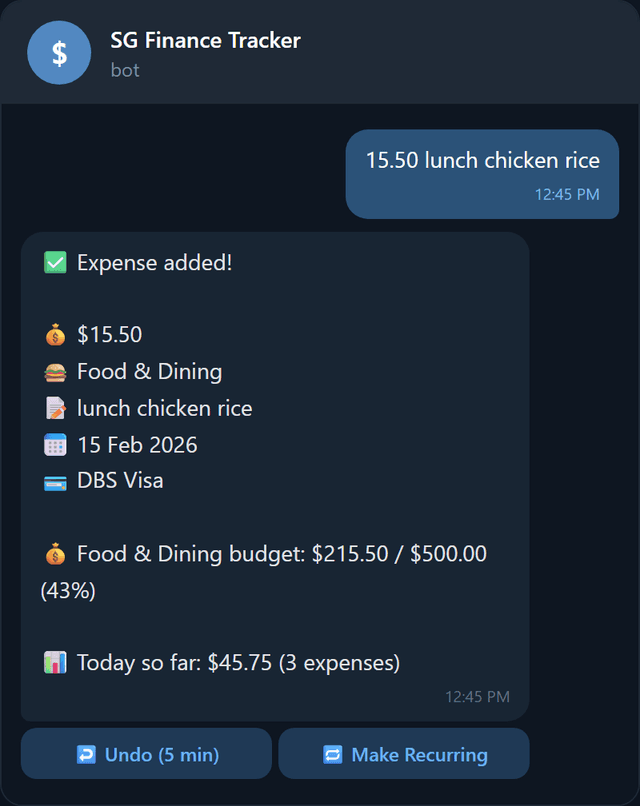
Referrals & Bonuses
Invite friends. Earn bonus AI queries.
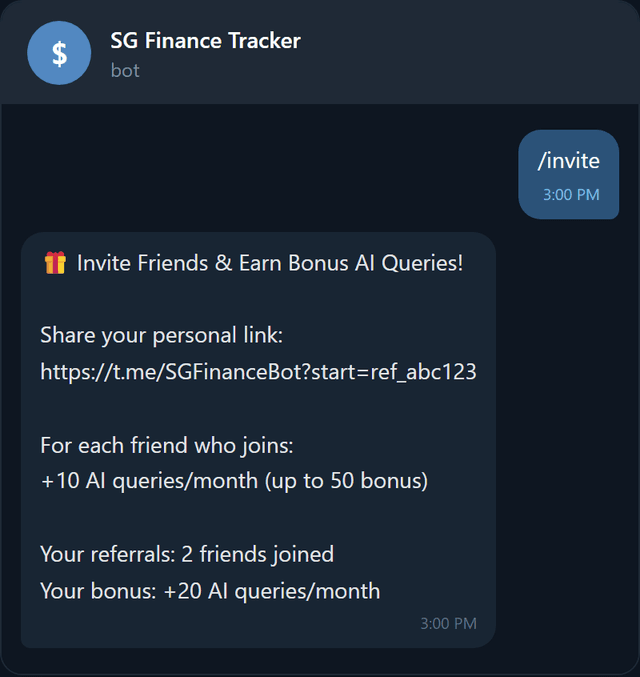
Now that you're set up, here's how to unlock more AI power for free. Use /invite to get your personal referral link.
How it works
- 1Send /invite in the bot.
- 2Share your unique referral link with friends.
- 3When they join and complete setup, you get +10 AI queries/month.
- 4Stack up to 50 bonus queries (5 friends).