SG Finance Tracker
Everything you need to know
From first setup to FIRE dashboard — step-by-step guides for every feature.
Payment Methods
Tag every expense to the right card or wallet.
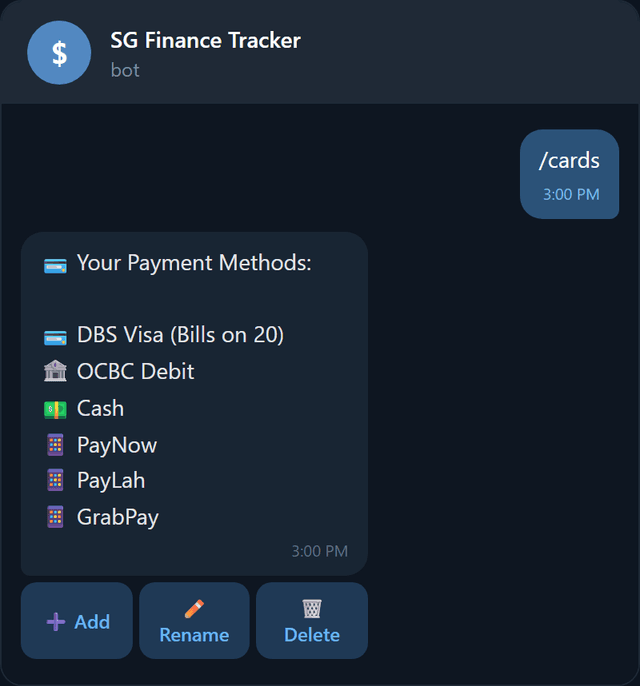
Send /cards to manage your payment methods — credit cards, debit cards, and e-wallets. The bot auto-selects your last-used card for each category — you can always change it from the review card.
Adding a payment method
- 1Tap Add.
- 2Enter the payment method name (e.g., "DBS Visa", "GrabPay").
- 3Select the type:
- Credit Card — requires billing date (1–31) for reminders
- Debit Card — no billing date
- E-Wallet — no billing date
- 4For credit cards, enter a billing date to enable automatic billing reminders.
Renaming & deleting
Tap Rename or Delete to see a list of your cards. Pick the one you want to change.
Why add billing dates?
If you set a billing date, use /reminders to get notified before each bill is due.
Category Budgets 2 free · 12 Plus
Set limits. Get warnings before you overspend.
Send /budgets to set monthly spending limits per category. The bot will warn you when you're getting close or going over.
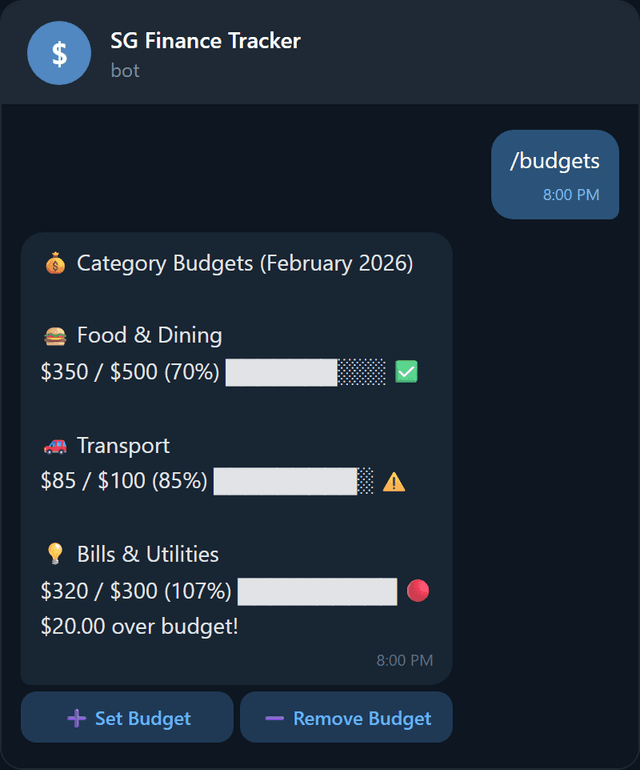
How warnings work
| Status | When | What happens |
|---|---|---|
| On track | Under 80% | Green status in expense confirmation |
| Warning | 80–99% | Yellow warning in expense confirmation |
| Over budget | 100%+ | Red alert with amount over |
Billing Reminders
Never miss a payment due date.
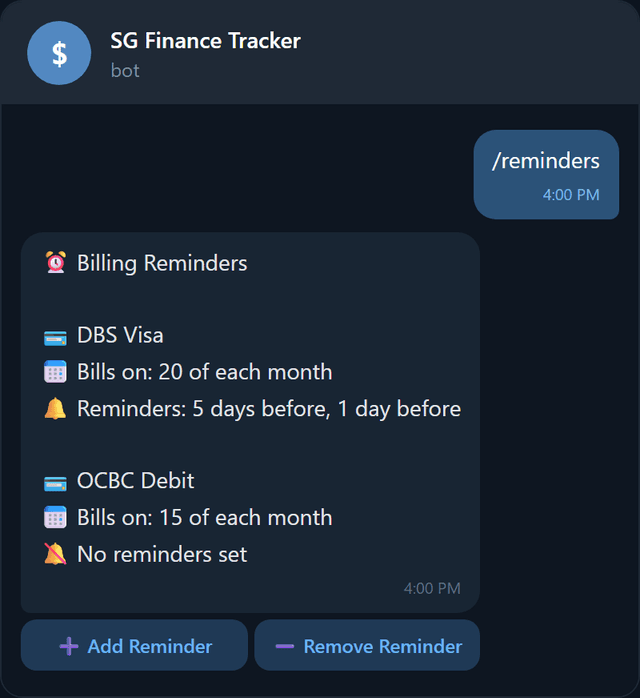
Send /reminders to set up notifications before your bills are due. Requires payment methods with billing dates (set up via /cards).
Setting a reminder
- 1Tap Add Reminder.
- 2Select a payment method that has a billing date.
- 3Choose how many days before: 1, 3, 5, or 7 days.
- 4The bot sends you a reminder message at 5 PM SGT on that day.