SG Finance Tracker
Everything you need to know
From first setup to FIRE dashboard — step-by-step guides for every feature.
Adding Expenses
Three ways to log — from one-tap to fully guided.
There are three ways to add an expense. Use whichever feels fastest.
Quick Entry (recommended)
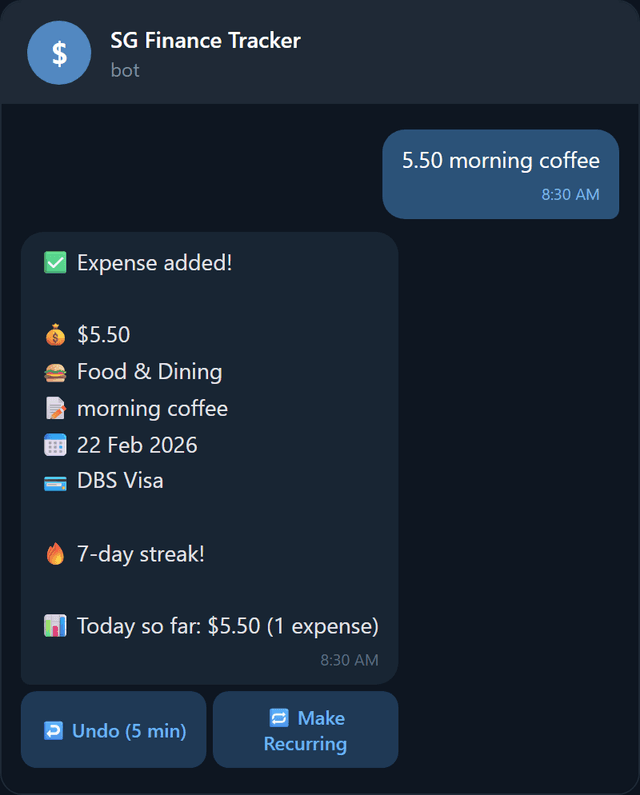
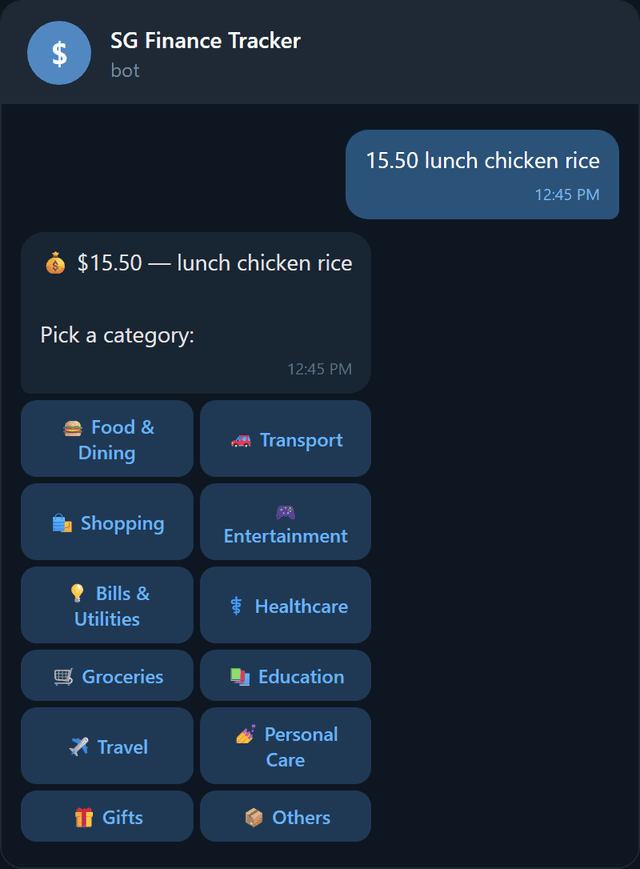
Just type the amount followed by a description. The bot auto-fills category, date, and payment method into a review card — tap Confirm and you're done, or change any detail with one tap.
| You type | Amount | Suggested category |
|---|---|---|
15.50 lunch | $15.50 | Food & Dining |
3.20 coffee | $3.20 | Food & Dining |
45 grab home | $45.00 | Transport |
120 electricity | $120.00 | Bills & Utilities |
89.90 uniqlo shirt | $89.90 | Shopping |
2500 rent feb | $2,500.00 | Bills & Utilities |
50 ntuc groceries | $50.00 | Groceries |
15 netflix | $15.00 | Entertainment |
Step-by-Step (/add)
Prefer guided entry? Send /add and the bot walks you through each field: amount → description → category → date → payment method.
Template Entry
For expenses you log often, create a template (see Expense Templates) and add them with a single tap.
Categories
There are 12 categories. After entering an expense, you'll see these as buttons:
Budget Alerts
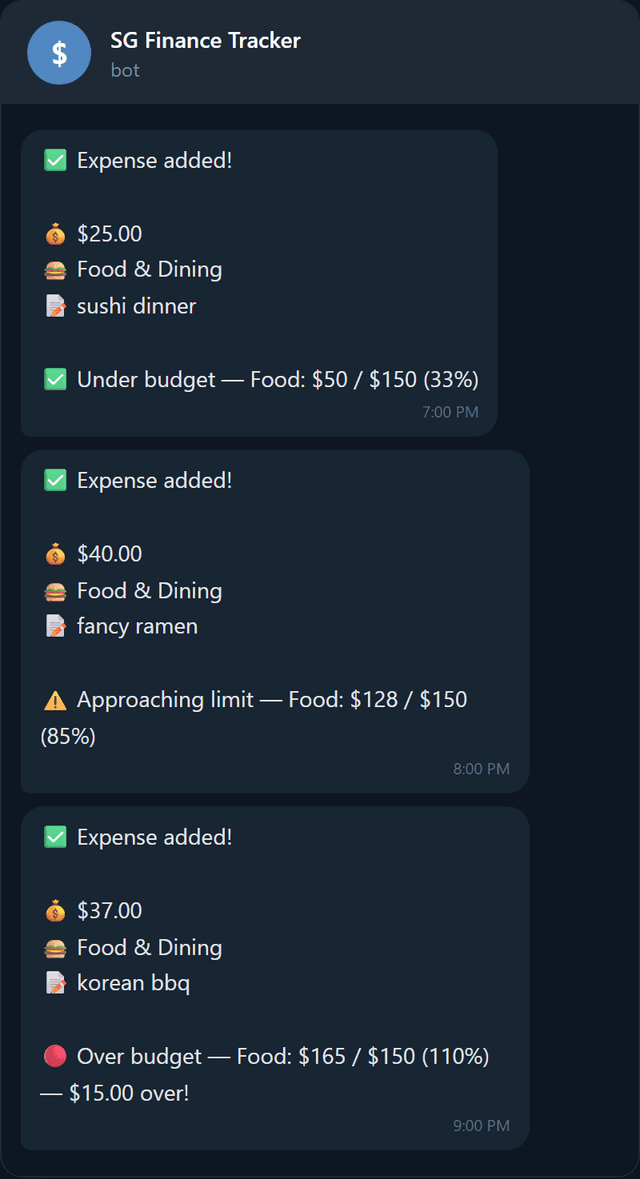
If you've set a budget for a category (see Category Budgets), the confirmation message shows your progress:
Viewing Summaries
See where your money goes, at a glance.
Send /daily, /weekly, or /monthly (or /summary) to see your spending breakdown. All three views share a tab interface — switch between them instantly.
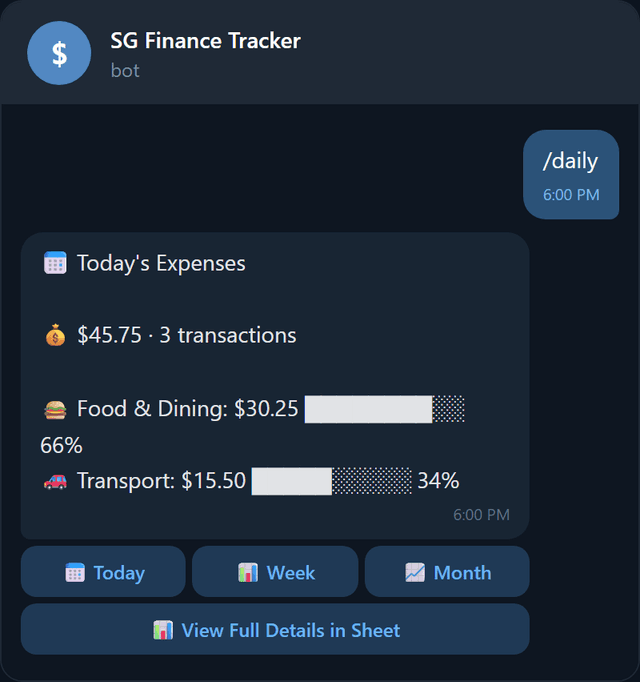
Today
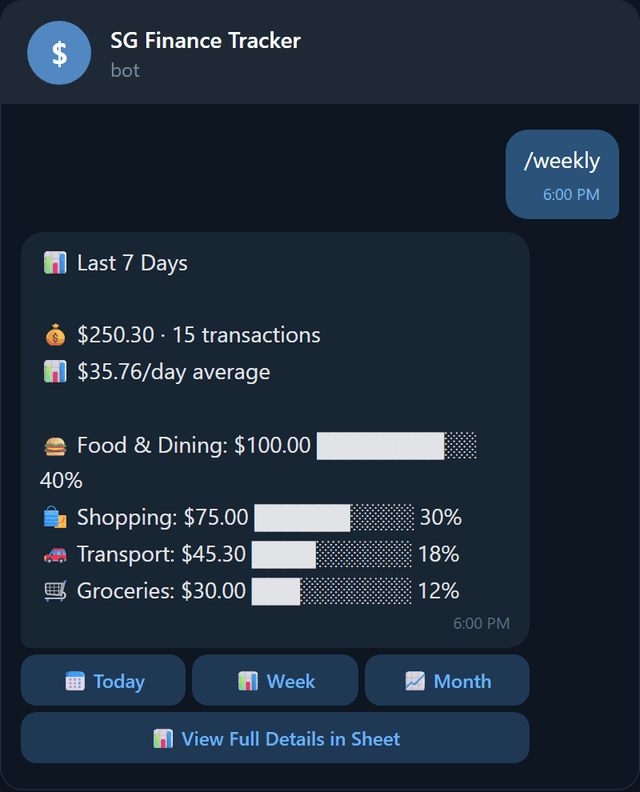
This Week
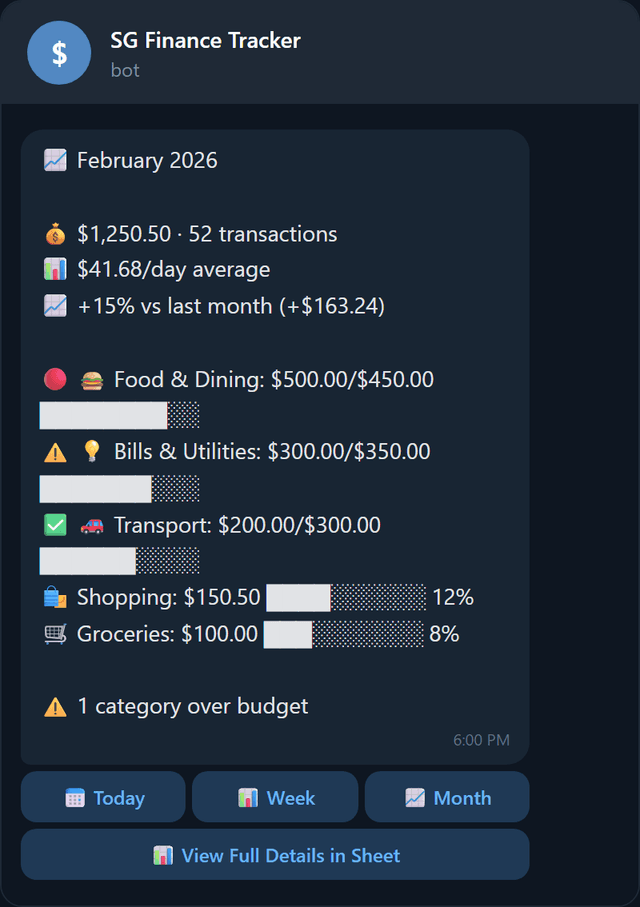
This Month
The monthly view includes comparison with last month and budget status per category. Tap the View Full Details in Sheet button to open your Google Sheet for deeper analysis.
Editing & Deleting
Fix mistakes in seconds.
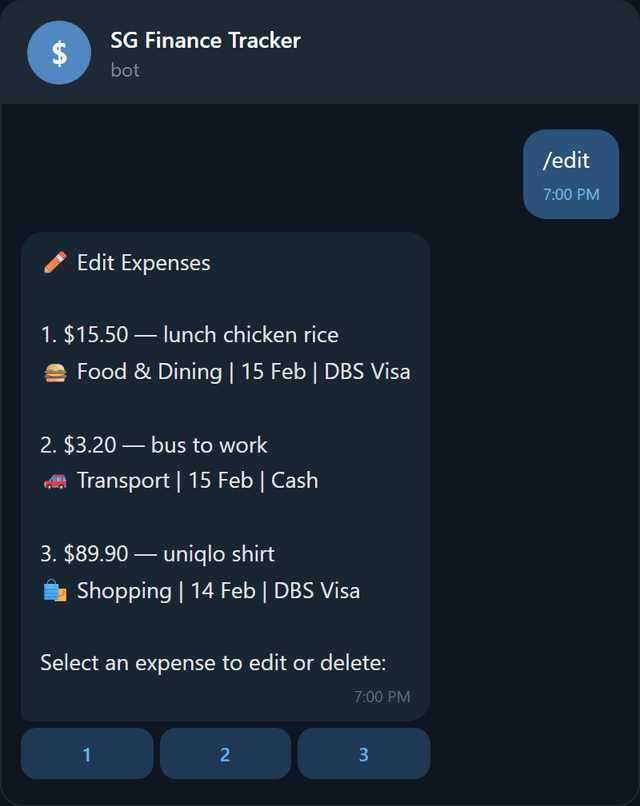
Send /edit to view and modify your last 5 expenses.
Editing an expense
- 1Tap the number of the expense you want to change.
- 2Tap Edit to modify it, or Delete to remove it.
- 3For edits: enter the new amount and description, then pick a category and payment method.
- 4The bot updates the row in your Google Sheet directly.
Deleting an expense
- 1Tap the expense number, then tap Delete.
- 2Confirm deletion — the row is removed from your Google Sheet.
Daily Streaks
Build the habit. Watch your streak grow.
Every day you log at least one expense, your streak grows. The bot tracks your current streak and longest streak automatically.
How streaks work
- Log at least one expense per day to keep your streak alive.
- The streak resets if you miss a full day (based on Singapore time, SGT).
- Your current streak is shown in expense confirmations.
Milestone celebrations
Hit a milestone and the bot sends a celebration: